1 · Paste JSON
3 · Pick actions
Convert once and the actions found in your payload show up here, each in its own colour - tick the ones the range should contain. The same colours are used by the 13×13 grid.
Paste a solution JSON, tick the actions you want, copy the Pio range.
Convert once and the actions found in your payload show up here, each in its own colour - tick the ones the range should contain. The same colours are used by the 13×13 grid.
You need two things from GTO Wizard: your spot, and its JSON. This page turns that JSON into a PioSOLVER range. Four steps.
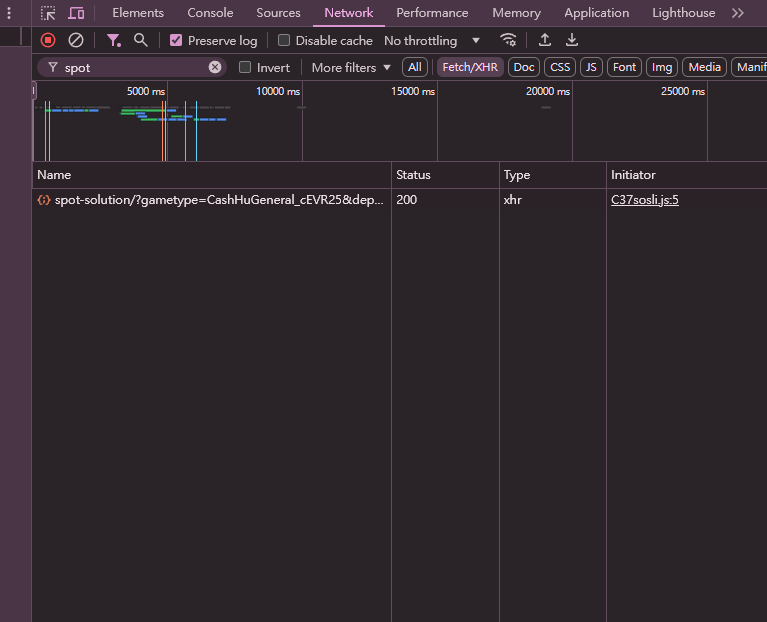
spot in the filter box ·
3 click spot-solution, then open Response
spot in the filter box. A request called
spot-solution appears. Click it, open Response,
select everything (Ctrl+A) and copy it
(Ctrl+C).
Nothing in the list? DevTools only records what happens while it is
open: keep it open and press F5 to reload the page - then
spot-solution shows up.
No spot at hand? Press Load GTO Wizard sample and
watch the whole thing work.
Reading the grid: every colour is one action, and the height of a
slice is how often that hand takes it.